
Short answer
PdfCraft offers separate commands for combining documents, extracting selected pages and splitting a document into files. Use Combine files when you want one output, Extract when you want a subset, and Split when you want several outputs. This guide follows the official documentation and interface screenshots checked on October 18, 2026. We have not independently run a file-fidelity benchmark, so verification of your saved result remains part of the workflow.
What is PdfCraft?
PdfCraft is the PDF workbench in ArtCraft's suite. The official page provides standalone packages as well as a Launcher route and labels the application an early build in the suite directory. Begin with our installation guide if needed. Use the app for a small, repeatable task before relying on it for a complex production document.
Why is it trending now?
Readers investigating ArtCraft often need a concrete PDF task rather than another comparison headline. Page organization is a useful starting point because the intended result can be checked: how many pages should exist, in which order, and in how many files? This tutorial does not infer a separate trend metric or claim that every PDF feature is fully equivalent to another application.
What people are looking for
1. Prepare copies and an expected result
Keep originals outside the output folder. For a simple exercise, use a four-page report and a two-page appendix. Combining them should produce six pages, with the appendix after the report. Extracting report pages two and four should produce a two-page output. Splitting the four-page report every two pages should produce two files. These are proposed checks for your exercise, not results we claim to have measured.
2. Open the document and inspect its pages
Open your sample in PdfCraft, then choose Organize pages. The documented grid shows page thumbnails and page-operation controls. On macOS, the README describes Command-click and Shift-click for selecting multiple pages. Confirm the selection visually before rotating, deleting or extracting anything.
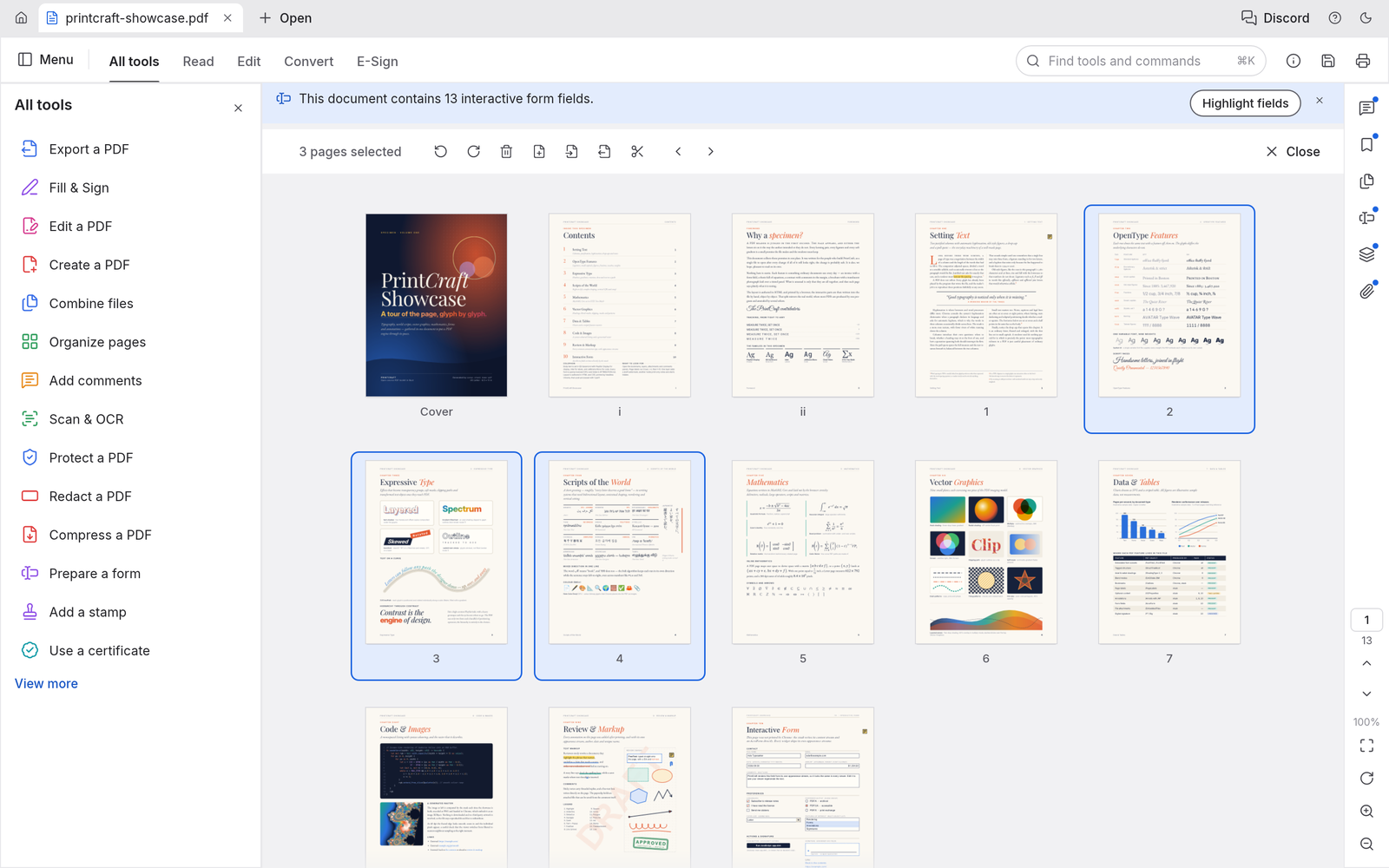
Organize pages makes the selection visible before a page operation. Official project documentation screenshot, checked October 18, 2026; not a ByteBriefly test capture. © 2026 ArtCraft Team and PdfCraft contributors. MIT license and permission notice; asset credits. Displayed version numbers are those in the documentation image, not a live release feed.
3. Combine two PDFs into one
Choose Combine files, supply the report and appendix and review the input order before completing the operation. Save the combined output with a new filename. Open it again and check the total page count and the boundary where the appendix begins. If the input picker or labels differ in your version, use the current documentation rather than assume a missing control means the operation succeeded.
The project describes preserving structures such as bookmarks and form fields. Treat that as a capability claim to verify with your own inputs: inspect a bookmark destination or complete a harmless form field on a copy if those features matter. A correct page count alone does not establish full fidelity.
4. Extract selected pages
Return to Organize pages, select only the pages you need and use Extract to create a separate document. Extraction copies selected pages into a new document; it is not the same operation as deleting unwanted pages from the original. Check page labels against physical page positions when a PDF contains a cover or Roman-numbered front matter.
5. Split a PDF into several files
Use Split and choose the appropriate rule. The official screenshot shows a number-of-pages option and a split-before-selected-pages option. For the four-page exercise, set two pages per file and check that the predicted output count matches two before continuing.
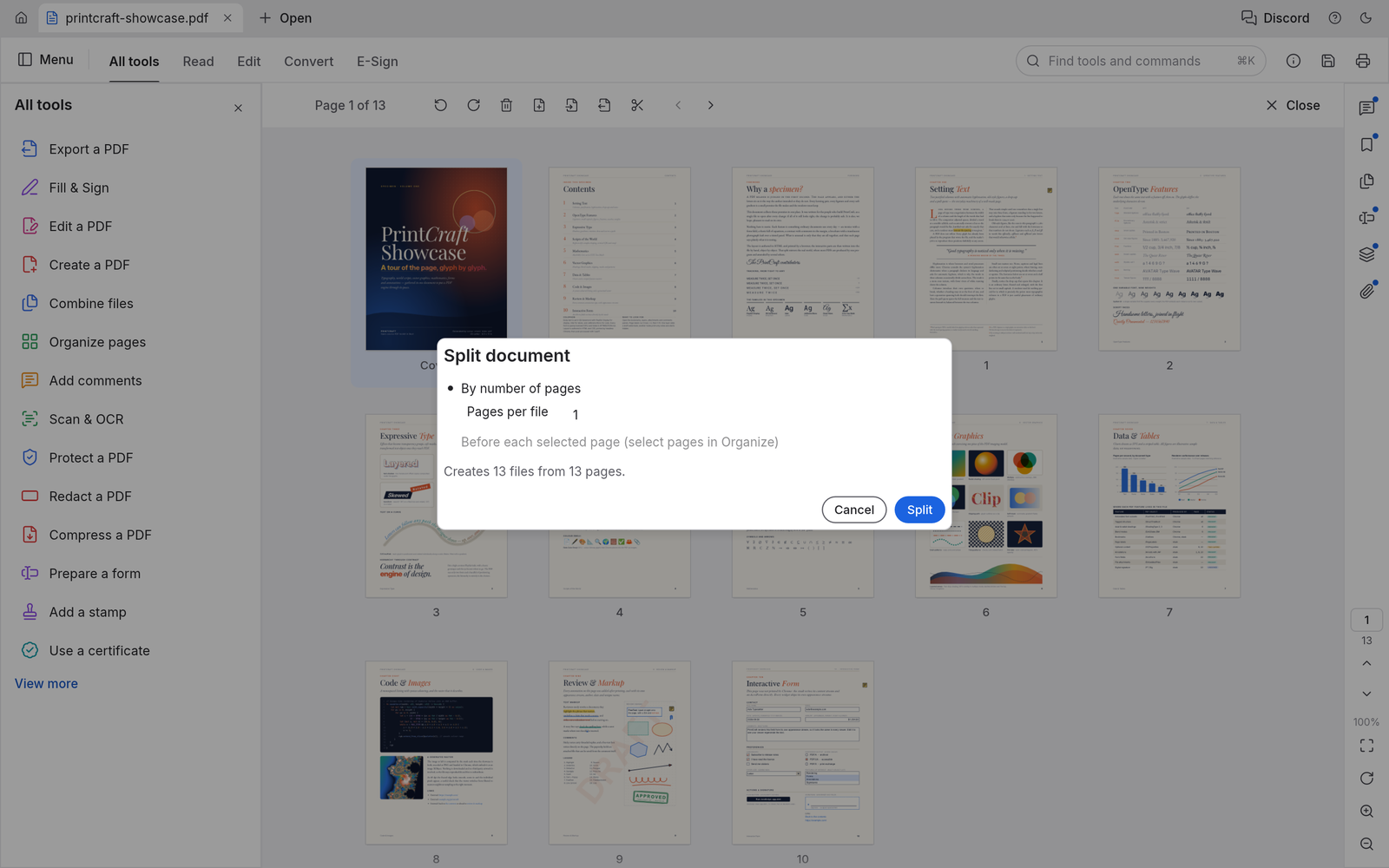
This official example uses one page per file and predicts thirteen outputs from thirteen pages. Official project documentation screenshot, checked October 18, 2026; not a ByteBriefly test capture. © 2026 ArtCraft Team and PdfCraft contributors. MIT license and permission notice; asset credits. Displayed version numbers are those in the documentation image, not a live release feed.
Choose a separate output location and inspect the resulting filenames, page counts and order. If the last section contains fewer pages than the requested chunk size, check it deliberately rather than assume the document divided evenly.
6. Save, reopen and verify
After rotating or reordering, save the edited copy, reopen it and inspect the changed pages. Verify text, images, links and any forms important to the job. Use another trusted viewer for a comparison when fidelity matters. The project's documented undo and recovery behavior is helpful, but does not replace retaining the original.
For password-protected documents, use an authorized password and respect the document's permissions. Do not treat an operation being listed as permission to bypass restrictions. A scan, signed document or complex form may require checks beyond ordinary page operations.
What happens next?
If a result is incorrect, record the exact version, operation and expected page order, and report a reproducible example without publishing private documents. Recheck release notes before repeating the task with a newer build. Return to the ArtCraft overview for the other apps; this guide stays focused on PDF page operations rather than asserting complete Acrobat replacement.