
Short answer
Start at ArtCraft's official app directory and follow its Download Launcher link to the storytold/craft-launcher repository. Choose the release package for your operating system and processor, install or open it, then use an app's Install control. You do not need to compile the source code for the normal packaged route. This guide follows the project's documentation checked on October 18, 2026; it is not a claim that we tested every operating system ourselves.
What is ArtCraft Launcher?
The Launcher manages the individual Craft applications, while each app also offers standalone downloads. If you only want PdfCraft, either route is possible. Read the suite overview for the application map, or continue to our PdfCraft tutorial after installation.
Why is it trending now?
Readers discovering the suite naturally search for a download or installer. The important next step is identifying the project's own release page rather than downloading from a similarly named site or an unrelated launcher repository. This is a practical guide, not a new Google Trends capture; no search volume is inferred for this tutorial.
What people are looking for
1. Follow the official download path
Open getartcraft.com/apps, choose Download Launcher and verify that the destination is storytold/craft-launcher. On Releases, expand the assets if necessary. Download a packaged build, not GitHub's automatically generated Source code archive, unless you intend to build the software yourself.
The release provides a SHA256SUMS.txt file. A matching checksum can detect a corrupted or mismatched download; it is not a complete security audit. Check the current release information rather than copy a version number from a screenshot.
2. Choose the package for your system
Windows: the documented x64 MSI is for most Intel/AMD 64-bit PCs; ARM64 targets Windows on Arm, and x86 is for 32-bit Windows. Run the matching installer and follow its prompts. The portable ZIP is an alternative: extract it fully and run artcraft-launcher.exe from the extracted folder. Keep the folder intact because the portable version keeps settings there.
macOS: download the universal DMG, which the README lists for Apple silicon and Intel Macs. Open the disk image and drag ArtCraft Launcher into Applications, then open the installed app. If macOS reports a verification problem, recheck the origin and current release guidance; do not disable system protections just to follow a tutorial.
Linux: choose your processor architecture and a supported package. The README lists AppImage, Debian, RPM and Flatpak options, among others. For AppImage, allow execution and run the file; for a distribution package, use the normal package-management path for that distribution. Flatpak has distinct sandbox behavior, so read its notes if apps are installed inside the sandbox rather than where you expected.
3. Install one app first
Open the Launcher, find the application you need and choose Install. Wait for the download and installation to finish. The documentation says it selects an app package for the platform and checks the release checksum. An operating-system permission prompt can depend on the app package and installation method; do not assume all platforms behave alike.
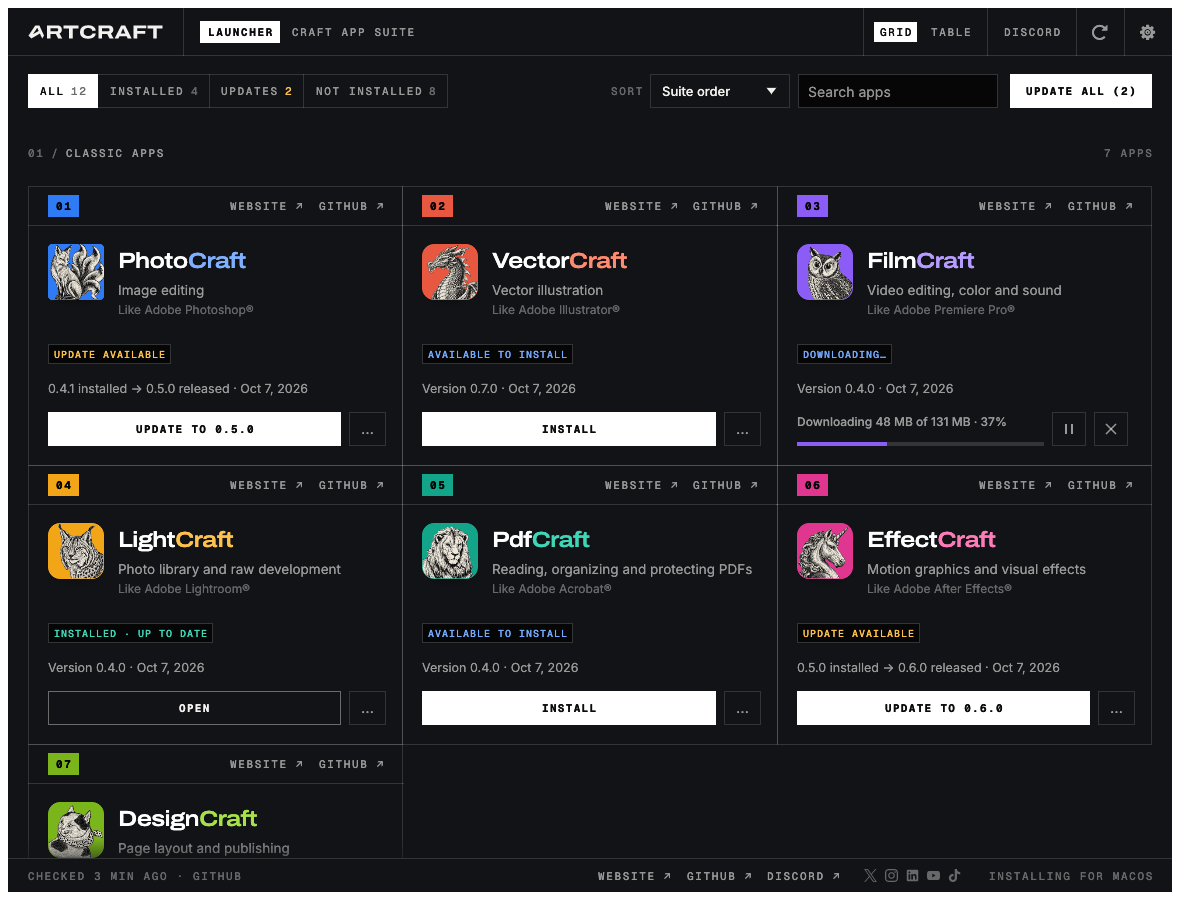
Find the app card and use Install; Open is shown after an app is recognized as installed. Official project documentation screenshot, checked October 18, 2026; not a ByteBriefly test capture. © 2026 ArtCraft Team and ArtCraft Launcher contributors. MIT license and permission notice; asset credits. Displayed version numbers are those in the documentation image, not a live release feed.
4. Check versions and updates
Use the table view to compare installed and available versions. Open starts an installed app; an update control indicates a newer release. Read release notes before updating work that depends on a particular version. The screenshot illustrates the controls, not today's available versions.
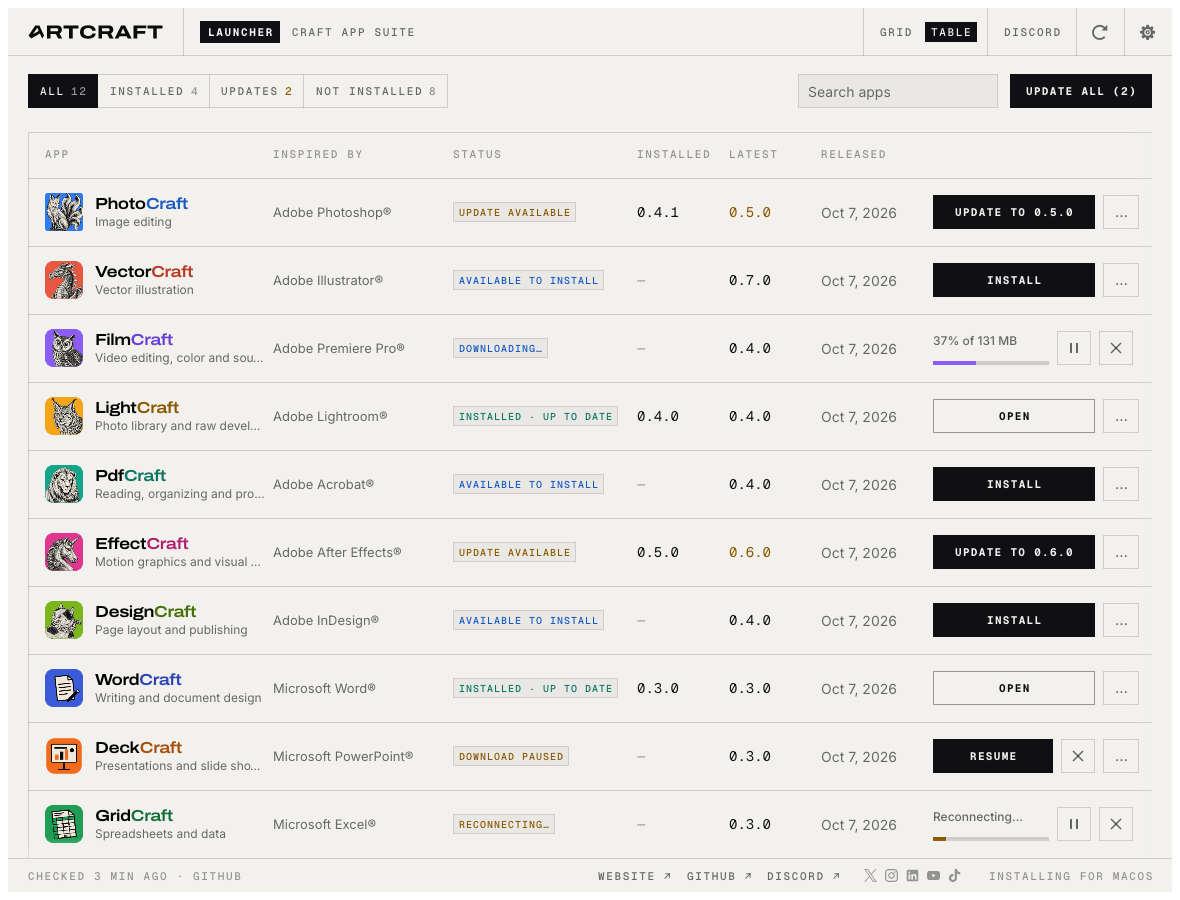
The table separates installed versions from available releases. Official project documentation screenshot, checked October 18, 2026; not a ByteBriefly test capture. © 2026 ArtCraft Team and ArtCraft Launcher contributors. MIT license and permission notice; asset credits. Displayed version numbers are those in the documentation image, not a live release feed.
5. If installation fails
Record the Launcher version, operating system, processor and error message. Check that the release asset finished downloading and that sufficient space is available. Consult the project's issue tracker for a matching problem. You can inspect the individual app's standalone download route without assuming that deleting settings or repeatedly reinstalling will fix an unknown error.
What happens next?
Launch the selected app with a disposable sample file before opening important work. For PDFs, follow the page-operation guide and verify the exported result. Save the version used so later changes can be distinguished from an installation problem. We will update this guide if the official package names, platform requirements or installation flow materially change.